
If after installing Linux Mint in EFI mode, your computer skips the boot menu and boots straight into Windows (or another operating system), you probably have an issue with the boot order.
To modify the boot order:
- Boot Linux Mint in
livemode (with your USB stick or DVD). - Open a terminal.
- Type
sudo efibootmgr.
This command lists the available boot options and the boot order.
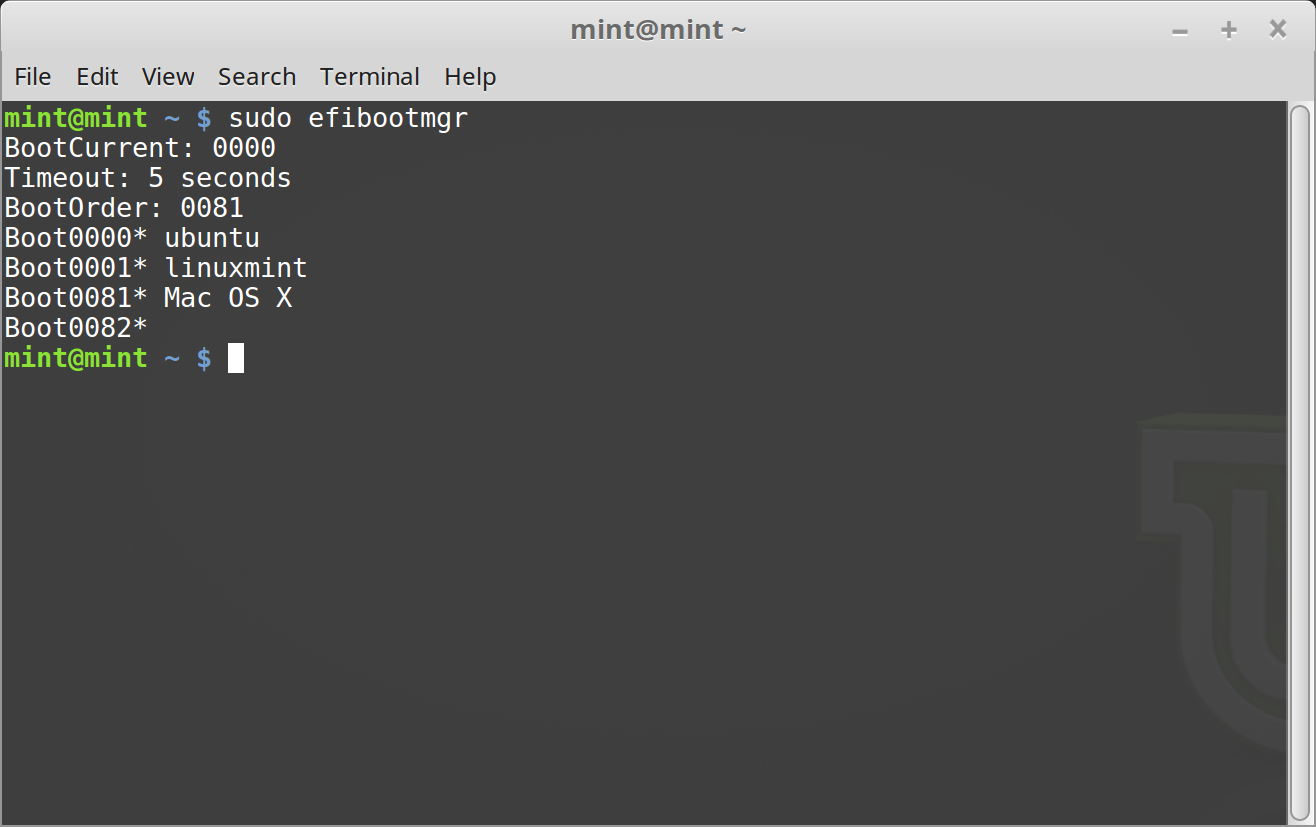
In the screenshot above, there are three boot options:
ubuntuat0000linuxmintat0001Mac OS Xat0081
The boot order is 0081. This indicates that the computer only tries to boot Mac OS and not Linux Mint.
Important
For technical reasons Linux Mint uses ubuntu as its EFI boot name.
- To fix the boot order, type
sudo efibootmgr --bootorder XXXX,YYYY(whereXXXXandYYYYare the operating system boot options you want to boot).
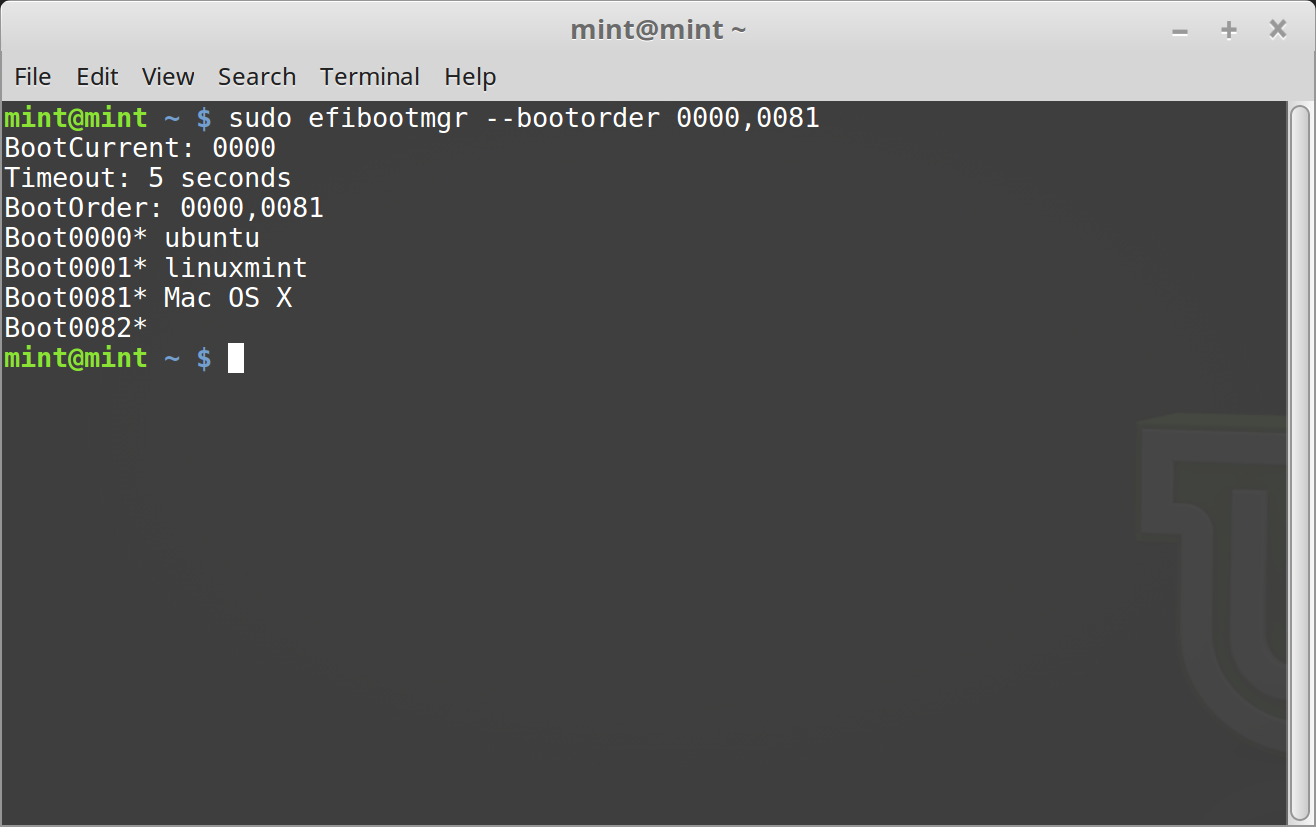
In the screenshot above, sudo efibootmgr --bootorder 0000,0081 instructs the computer to first try to boot Linux Mint (ubuntu being the EFI boot name for Linux Mint), and then Mac OS.
- Restart the computer.